Explore with VibeKit
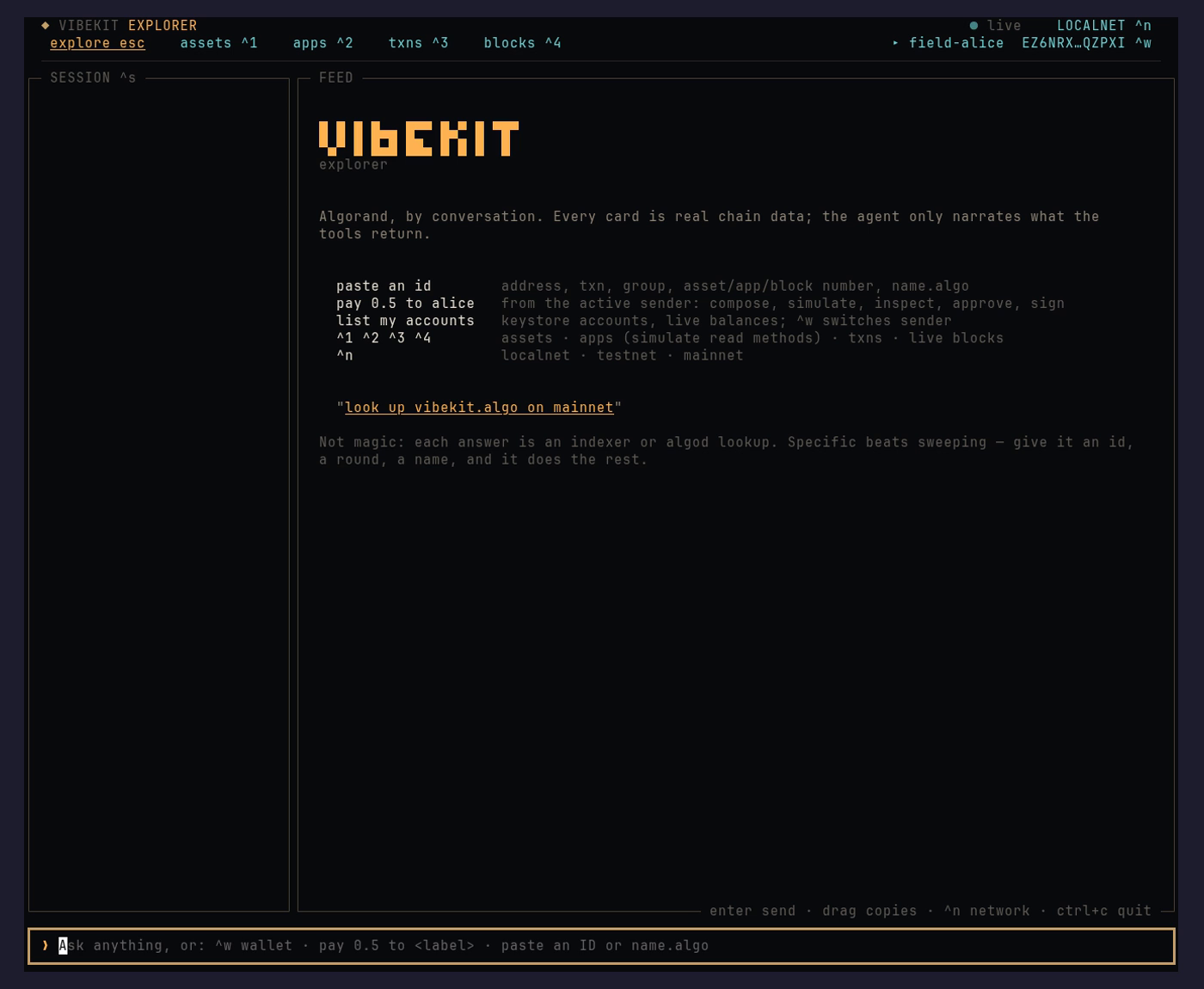
The VibeKit Explorer is a full-screen terminal app for Algorand. It is useful before you configure a model: direct identifiers route to chain lookups without an agent call.
Configure the optional chat lane
Section titled “Configure the optional chat lane”To use natural-language requests, choose an inference provider and model:
vibekit explore setupThe setup stores only the provider, model, and optional base URL in the VibeKit config file. API keys stay in your environment. The Explorer supports ZeroSignal, Ollama, Anthropic, OpenAI, and OpenAI-compatible endpoints.
ZeroSignal
Section titled “ZeroSignal”ZeroSignal is the smoothest route when you want a provider that works through
its local zs-proxy rather than an API key. Follow the
ZeroSignal setup guide to install the
proxy, start it, and fund it if needed. Then run vibekit explore setup.
VibeKit probes the local proxy and lets you select from its live text-model
catalog; it does not write an API key to disk.
Open the Explorer
Section titled “Open the Explorer”vibekit exploreThe command starts the local daemon support it needs, then opens the TUI. From a source checkout, use the TUI development command described in installation.
Start with direct lookups
Section titled “Start with direct lookups”Paste or type an Algorand address, transaction ID, transaction group ID, or
an NFD such as vibekit.algo; the Explorer opens a structured result without
sending it to a language model. A bare number could be an asset, an
application, or a round, so say which: asset 1042, app 1071, or
block 51000000.
Press ^n to cycle LocalNet → TestNet → MainNet, or type network testnet.
The result remains tagged with the network that produced it.
Other keys: ^1 assets, ^2 apps, ^3 txns, ^4 blocks, ^5 plugins,
^w wallet, ^s session, ctrl+c quit. Most terminals drop ctrl+digit, so
alt+digit works too. In the approval modal, enter approves and esc denies.
Use the chat lane when it helps
Section titled “Use the chat lane when it helps”Ask a narrow question such as “show the latest block” or “list my accounts.” The chat transcript keeps each request with its result cards. The agent can select tools and explain the result; it cannot generate UI code or bypass the Explorer’s action flow.
Review every write
Section titled “Review every write”When a request composes a transaction group, the Explorer stops at a modal that shows the actual unsigned group, simulation, sender, network, fees, and visible effects. Inspect it, then explicitly approve or decline it. Only the local keystore can sign after approval; the model never receives key material.
The browser Explorer and browser-wallet flow are not part of this documentation because they are not a public product path yet.